How to choose an IPTV player app: features that matter and red flags to avoid
A checklist for choosing an IPTV player app: format support, EPG, hardware decoding, privacy, and red flags that an app bundles unlicensed content.
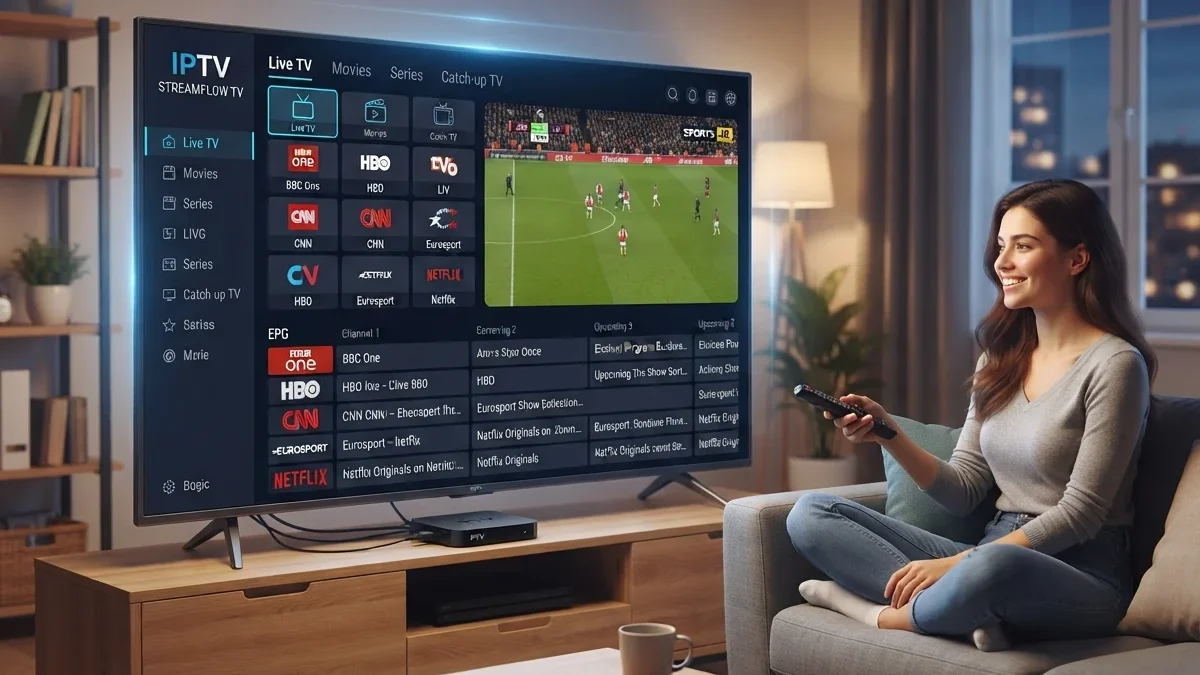
An IPTV player app is software that opens playlists and streams and presents them as a TV experience: a channel list, a program guide, sometimes recording. The player itself is just a tool, like a web browser. This guide helps you choose a good one and spot apps that are really fronts for unlicensed content.
Before choosing an IPTV player app, understand what you need
Ask yourself where your channels come from:
- An operator or legitimate service with its own app. Use the official app first. It's built for the service's DRM, catch-up and account features, and it's supported.
- Your own sources, such as a network TV tuner, a home media server, or a lawful playlist from a provider that explicitly supports third-party players. In that case you need a general-purpose player.
Many commercial services protect their channels with DRM, so they only work in their own apps. A third-party player won't help there.
Portal logins vs playlists
IPTV player apps usually accept content in one of a few ways:
- M3U playlist URL or file: a list of channels and stream addresses. See M3U playlists explained
- Portal or API login: a server address plus username and password, which the app uses to fetch channels, guides and on-demand lists
- Local sources: network tuners or media servers discovered on your home network
A legitimate provider that supports third-party players will document exactly which method to use. If a provider hands you a generic login with no company or documentation behind it, that's a reason for caution, not a technical detail.
Features that matter
Format and protocol support
- M3U and M3U8 playlists, both from URLs and local files
- HLS and, ideally, MPEG-DASH streams
- Common codecs: H.264 and HEVC, plus AV1 on newer devices
- Multiple audio tracks and subtitles, including closed captions
Guide (EPG) features
- XMLTV support, including compressed
.xml.gzfiles - Reliable channel matching using
tvg-id, with manual matching options - A time-offset setting
- Grid and "now/next" views
Our explainer on M3U playlists and XMLTV guides covers how these work.
Playback quality
- Hardware-accelerated decoding, essential on TVs and streaming sticks
- Adjustable buffer size for unstable connections
- Correct frame-rate and resolution switching (match frame rate), which reduces judder
- Audio passthrough for surround sound, if you use a soundbar or AV receiver
Convenience
- Favorites and custom channel ordering
- Catch-up or timeshift, if the source supports it
- Recording, local or via a server
- Parental PIN locks
- Multi-profile support for households
Accessibility
- Subtitle styling (size, contrast, background)
- Readable interface at TV distance
- Screen reader or voice guidance compatibility on platforms that support it
Matching the app to the device
| Device | What to look for |
|---|---|
| Android TV / Google TV | Hardware decoding, frame-rate matching, remote-friendly interface |
| Fire TV | Availability in Amazon's Appstore; newer Vega OS models can't install Android apps from outside the store |
| Apple TV | Native tvOS app with Siri Remote support |
| Samsung / LG TVs | Availability in the TV's own app store, which is more limited than Android |
| Phones and tablets | Picture-in-picture, casting support, offline guide |
| Computers | Keyboard shortcuts, multiple windows, recording support |
An app that works well on a phone may be awkward with a TV remote. Read the app's description for remote-control support before installing.
Free, freemium or paid?
Player apps use different business models:
- Free and open source, such as VLC and Kodi, maintained by communities
- Free with ads, which can be intrusive during live TV
- Freemium, with core features free and advanced features paid
- Paid, often with a one-off price or subscription
Paying for a well-made player is reasonable. But a player app shouldn't charge for channels. If an app's price includes content from unidentified sources, it's not just a player.
Privacy and security checks
- Where does the app come from? Prefer official app stores or the developer's own verified site. Be wary of APKs from forums and link-shortener sites.
- What permissions does it ask for? A video player doesn't need your contacts, SMS or precise location.
- Who makes it? Look for a named developer, a privacy policy and a support contact.
- Does it ask you to disable security protections such as Google Play Protect? That's a serious warning sign. The FBI has warned about this pattern in connection with compromised streaming devices. See our analysis of malware and fraud risks.
Testing an app before committing
- Install it from the official store.
- Load a small, known-good source, such as your own tuner or a test playlist from your provider.
- Check that the guide loads and matches channels.
- Watch a fast-moving channel for a few minutes to check smoothness.
- Try the remote: can you change channels and open the guide quickly?
- Look at the settings: buffer, decoder, captions and audio options.
If the app passes these checks, it's worth exploring further. If it struggles with a simple source, it will struggle more with a large one.
Red flags: when a "player" is not just a player
Be cautious if an app:
- Comes preloaded with hundreds of premium channels or new movies without any subscription to a recognizable service
- Sells "credits," "panels" or "lines" through resellers and messaging apps
- Is only available as a sideloaded file and has changed its name several times
- Has no identifiable company, address or terms of service
- Promises "every channel in the world" for a tiny one-off fee
These are signs that the app distributes content it has no rights to. Apart from the legal issues, such apps can vanish overnight, and platforms are starting to block them. See our report on Amazon blocking piracy apps on Fire TV.
Updates and support
Good player apps are updated regularly to keep up with platform changes and new formats. Before choosing one, look at:
- When it was last updated in the app store
- Whether the developer responds to reviews or support requests
- Release notes, which show whether bugs are being fixed
An abandoned app may stop working after a platform update, and you'll need to start again with another one.
Setting up a player well
Once you've chosen an app, a few settings make a big difference:
- Decoder: choose hardware decoding if the app lets you choose. Switch to software decoding only to test a problem stream.
- Buffer size: increase it slightly if streams stutter on your network, at the cost of a slightly slower start.
- Frame-rate matching: enable it if your device supports it, to avoid judder on sports and films.
- Guide refresh: set a daily refresh and check the time offset. See EPG troubleshooting.
- Parental PIN: lock adult categories if children use the device.
- Favourites: build a favourites list so you don't scroll through hundreds of channels.
Common mistakes
- Installing several player apps at once and confusing their settings. Test one at a time.
- Ignoring the app's source. A player from an unknown website can be riskier than the content it plays.
- Overloading a low-end stick with huge playlists and guides. Big lists need capable hardware. See our streaming device buying guide.
- Assuming the player is broken when the source is the problem. Test the same stream in a second player.
- Sharing account details from a provider with friends, which often breaches terms and can get the account suspended.
Questions people ask
Do I need a separate player if my provider has its own app?
Usually not. The official app is designed for the service's features and protection. Use a separate player only if your provider explicitly supports third-party players.
Is a paid player better than a free one?
Not automatically. Some free and open-source players are excellent. Judge on features, updates, support and source, not price.
Can a player app record live TV?
Some can, typically to local storage on capable devices. Whether you may record depends on the source's terms. For antenna TV, a media server is often a better recording solution. See DVR options.
Why do some apps ask for a "MAC address"?
Some legacy portal-style systems identify devices by a hardware-like address. Legitimate operators that use such systems explain why in their own documentation. If an unknown seller asks for it to "activate" a subscription, apply the same caution as with any unverified service.
Key takeaways
- A player app is a tool; it does not provide channels. Use official apps for services that offer them.
- Prioritize hardware decoding, good EPG support, accessibility and a remote-friendly interface.
- Install players only from official stores or verified developers, and check their permissions.
- Be wary of players that come with premium channels from unidentified sources.
- Test a new app with a known-good source before committing to it.
Lawful tools worth knowing
- VLC: a free, open-source player that opens network streams and M3U playlists on almost every platform. See our VLC network stream guide.
- Kodi: a free, open-source media center. Its PVR clients can show live TV and guides from sources you provide.
- Home media servers such as Jellyfin, Plex and Emby, which can manage live TV from tuners. Compared in Jellyfin vs Plex vs Emby for live TV.
These tools are legal. What matters is the content you open with them.